How to remove a website from Google search without breaking your live site
📌 Key points
- Deleting a page from your server does not remove it from Google. Google keeps showing the old listing until it re-crawls and notices the page is gone, which can take weeks.
- To remove a page or subdomain fast, you use Google Search Console’s Removals tool — but it only works on a property you have verified ownership of.
- The safest way to verify ownership of a whole domain (including dead subdomains) is a Domain property using a DNS TXT record. It changes nothing on your live site.
- The Removals tool affects only the exact URL or prefix you enter — your main site stays untouched, and every removal is reversible.
- For a page that is permanently gone, pair the removal with a real 404 or 410 response so Google drops it for good, not just for six months.
A safe, step-by-step guide to How to Remove a Website From Google — without harming your live website. You delete an old demo page, a test subdomain, or a site you no longer want public. You search for it on Google a day later, expecting it to be gone — and there it is, still sitting in the results, sometimes right under your main pages. Worse, the title and description are outdated, or they belong to something you would rather nobody saw. Panic sets in: did I break something? How do I make this disappear without damaging the website I actually care about?
This is one of the most common quiet emergencies in website management, and it has a calm, safe, repeatable fix. I know because I went through it on my own agency domain, and I want to walk you through exactly what works, what does not, and how to do it without putting a single live page at risk.
Table of Contents
Why deleting the page does not remove it from Google
The first thing to understand is that your website and Google’s search index are two separate things. Your website lives on your server. Google’s index is a giant copy of the web that Google built by crawling pages and storing what it found. When you delete a page, you change your server — but you do not change Google’s stored copy. Google only updates that copy the next time its crawler visits the page and sees it has changed or disappeared.
That re-crawl is not instant. For a low-traffic page or an abandoned subdomain, Google might not come back for days or even weeks, because it crawls popular and frequently-updated pages far more often than quiet ones. So the gap you are seeing — page deleted, still in Google — is completely normal. You have not broken anything. Google is simply behind.
This matters because it shapes the whole fix. You are not trying to delete the page again. You are trying to tell Google, directly, “this is gone, please stop showing it,” and to do that faster than Google would discover it on its own.
The mistake most people make first
When the page keeps showing, the instinct is to fiddle with the website: change permalinks, edit settings, reinstall plugins, or even try to rebuild the deleted page so you can “delete it properly this time.” Almost none of this helps, and some of it creates new problems.
Changing a permalink structure, for example, does not remove anything from Google — it just changes your URL format, which can create a fresh batch of broken links for Google to crawl. Rebuilding a page you want gone is backwards. And clearing caches or toggling random hosting features has no effect on Google’s stored index at all, because the index is on Google’s side, not yours.
The real control panel for this problem is not your website. It is Google Search Console — Google’s free tool for site owners. That is where the actual removal happens.
Step one: understand what you are removing
Before touching anything, get clear on which of these you are dealing with, because the wording in the tools will make more sense:
- A single page on your live site (for example, one old blog post you unpublished).
- A whole subdomain — something like demo.yoursite.com or portfolio.yoursite.com — that you deleted entirely.
- An entire separate domain you no longer use.
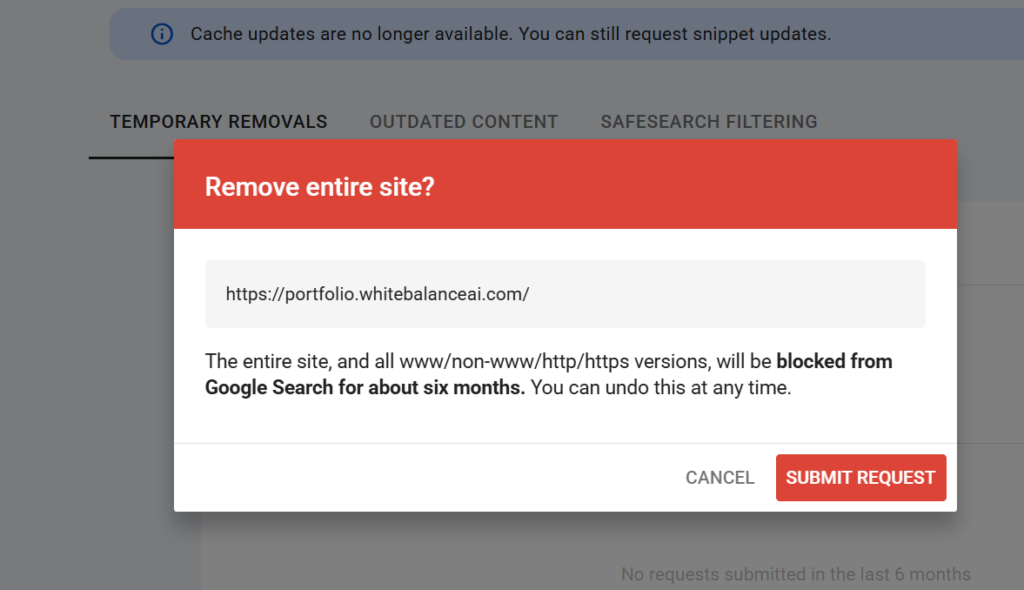
Subdomains are where people get most confused, so it is worth being precise. A subdomain such as portfolio.yoursite.com is a separate address from your main yoursite.com, even though it lives under the same domain you own. Google treats each subdomain as its own “site.” That is why, later, you will see a scary-sounding button that says “remove entire site” when you are only removing the subdomain — it means the entire subdomain, not your main website. Knowing this in advance stops the heart-stopping moment when that wording appears.
Step two: verify ownership in Google Search Console
Google will not let just anyone remove URLs from search — otherwise people could erase competitors. So the Removals tool only works inside a property you have verified you own. This single requirement is the reason most people get stuck. They open the Removals tool, paste the dead URL, and get an error like “no listed property” or “not verified.” The fix is not to force the removal; it is to add the right property first.
There are two kinds of property in Search Console, and the difference decides whether your removal will even work:
- URL-prefix property — covers one exact address, like https://yoursite.com. It does not cover subdomains. If you only have this, and you are trying to remove a subdomain, you will hit the “not verified” wall.
- Domain property — covers the entire domain and every subdomain and protocol under it. This is the one you want when removing a subdomain or cleaning up across your whole domain.
The Domain property is verified with a DNS TXT record, and this is the part people fear most — but it is genuinely safe. A TXT record is an invisible note added to your domain’s DNS settings. It does not change your website, your pages, your email, or your rankings. It exists only so Google can confirm you are the owner. Adding it has zero visible effect on your live site
How to add the Domain property
- In Google Search Console, open the property dropdown and choose Add property.
- Pick the Domain option (not URL prefix).
- Type your bare domain — just yoursite.com, with no https:// and no slash.
- Google shows a TXT record that starts with google-site-verification=. Copy the whole string.
- In your hosting or DNS provider, open the DNS records area, add a new record with Type: TXT, Name: @, and Value: the copied string. Leave TTL at its default.
- Save it, return to Search Console, and click Verify.
DNS changes can take anywhere from a few minutes to a few hours to register, so if verification fails the first time, that is expected. Wait fifteen or twenty minutes and click Verify again. One important note: leave that TXT record in place forever. If you delete it later, Google un-verifies you, and you lose access. It costs nothing to leave it sitting there.
Step three: use the Removals tool
Once your Domain property is verified, the Removals tool finally works on the dead page or subdomain. Here is the flow:
- Open the verified Domain property in Search Console.
- In the left menu, click Removals.
- Click New request, then Temporarily remove URL.
- Paste the exact dead address — for a subdomain, that is https://portfolio.yoursite.com/.
- Choose Remove all URLs with this prefix if you want every page under that subdomain gone, not just the homepage. For a dead subdomain, this is usually what you want — a clean sweep.
- Confirm the URL in the box is correct, then submit.
Within hours, that listing stops showing in Google search. The status in Search Console will read “Processing request,” then settle into an active removal.
The safety question everyone asks: can this hurt my main site?
This is the fear that freezes people at the final click, and it deserves a clear answer: no, the Removals tool cannot harm your main site, as long as the URL in the box is the one you intend to remove.
The tool only affects the exact URL or prefix you type. If the box shows portfolio.yoursite.com, then only that subdomain is touched — your main yoursite.com is a different address and is completely out of scope. Think of it like an envelope: the address on the front is the only place it goes. There is no mechanism by which removing one subdomain reaches across and affects another address.
Three things make this safe even for the nervous:
- It does not delete files or pages. It only hides a listing from search results. Your actual site is untouched.
- It is reversible. Every removal can be cancelled from the Removals list at any time.
- It shows you the exact URL before you submit. Read that box out loud before clicking — if it names the address you want gone, you are safe.
Step four: make a permanent removal permanent
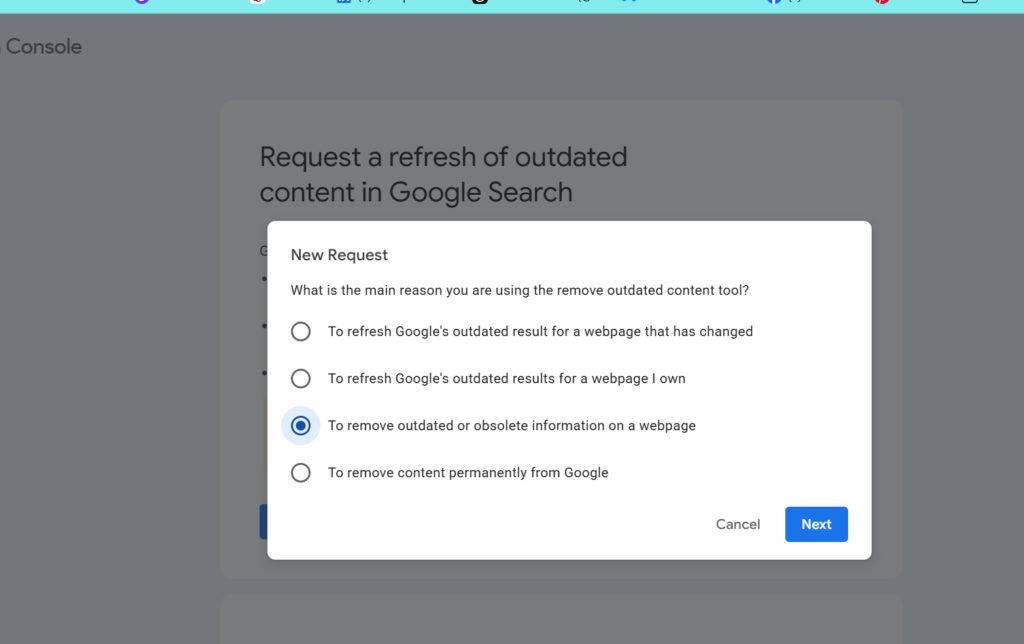
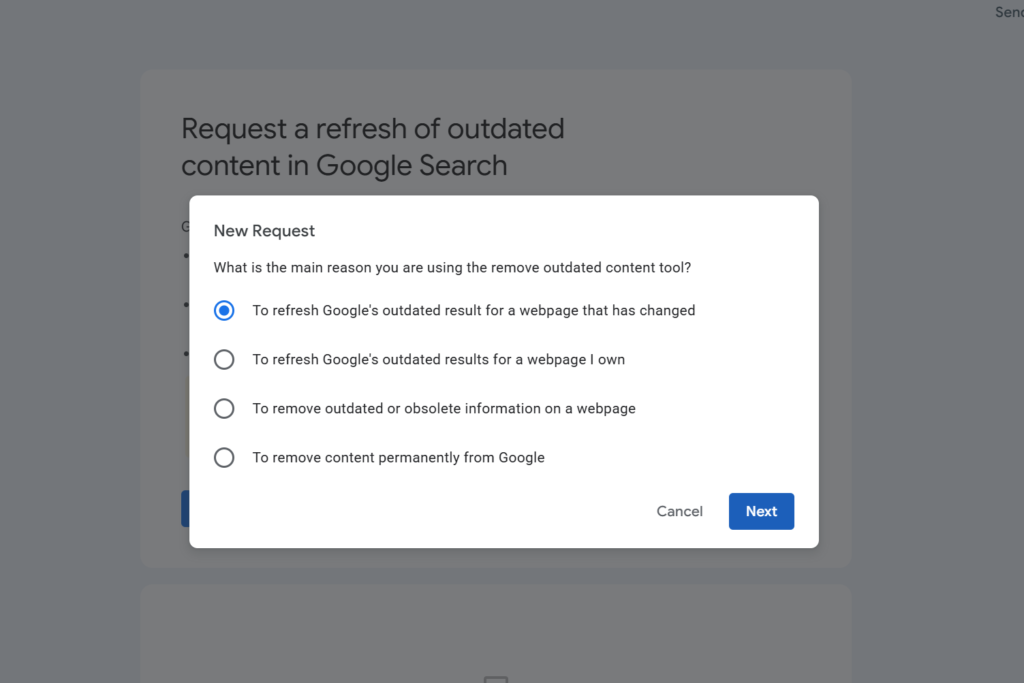
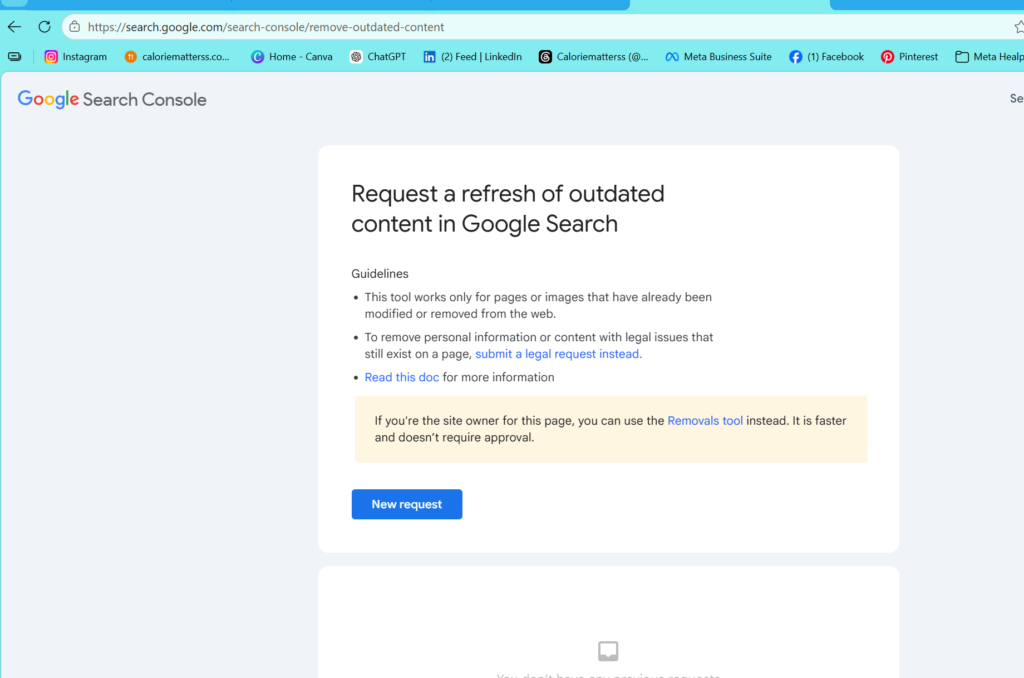
Here is a detail most quick guides skip. The Removals tool is, by default, a temporary block — it hides the page for about six months. If the page still existed after that, it could reappear. So for something you want gone forever, you need Google to see, during that six-month window, that the page is genuinely dead.
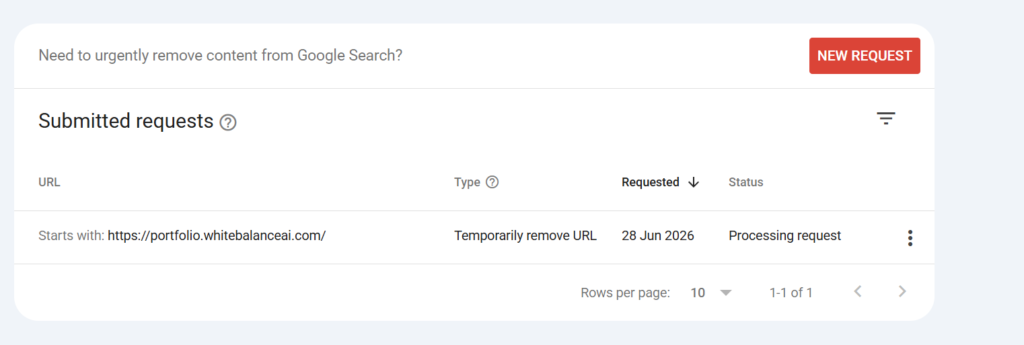
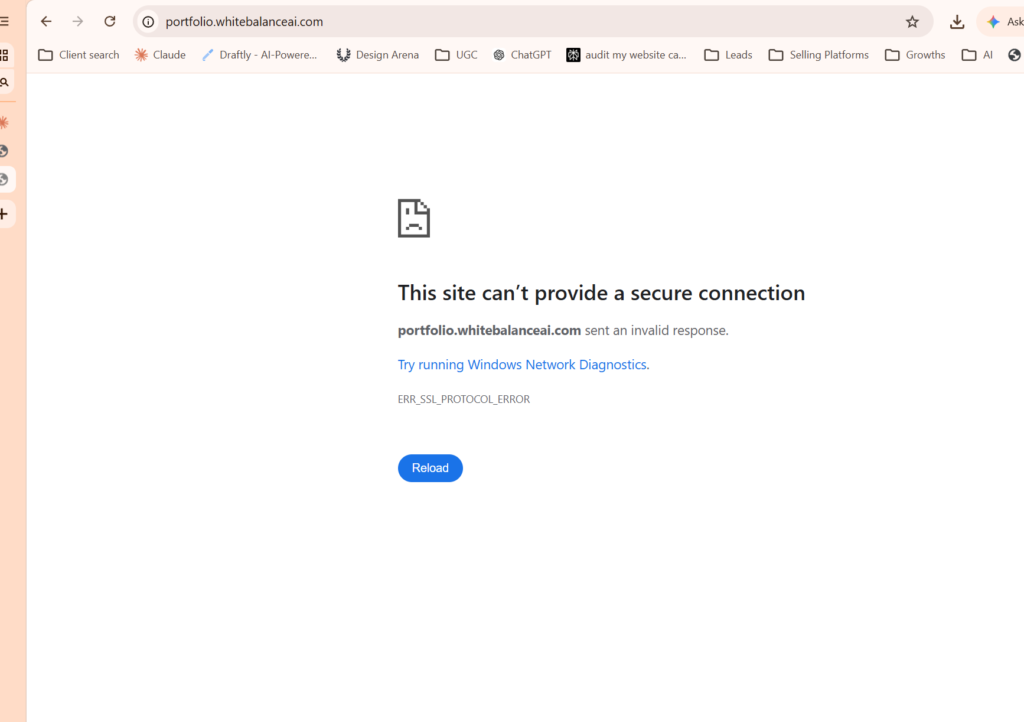
That happens automatically when the deleted page returns a proper error to Google’s crawler — a 404 (not found) or, better, a 410 (gone) response. When Google re-crawls during the blackout period and gets that error, it drops the page from the index permanently rather than just hiding it. So the winning combination is: temporary removal to hide it now, plus a genuinely dead page so the removal becomes permanent later. If your subdomain or page is truly deleted, this already happens on its own — you do not need to do anything extra.
A real example: how I cleaned up a deleted demo subdomain
Here is the situation that prompted this guide, because it is exactly the kind of thing that happens in real agency work. I had built several demo sites, each on its own subdomain — things like a portfolio demo on portfolio., a bakery demo, a clinic demo. When I tidied up, I deleted one of the demo subdomains entirely: removed it from the hosting panel and the file manager, gone at the server level.
But when I searched my domain on Google, the deleted demo subdomain was still listed, sitting right under my real pages, showing an old and slightly off description. I tried to remove it through Search Console and hit the “no listed property” error, because the only property I had was a URL-prefix one for my main site — which does not cover subdomains. I even worried I had made an unfixable mistake by deleting the subdomain before removing it from Google.
The reassurance there is worth repeating for anyone in the same spot: you do not have to remove a page from Google before deleting it. Doing it afterwards is completely normal and works fine. I had not broken anything; I just needed the right property.
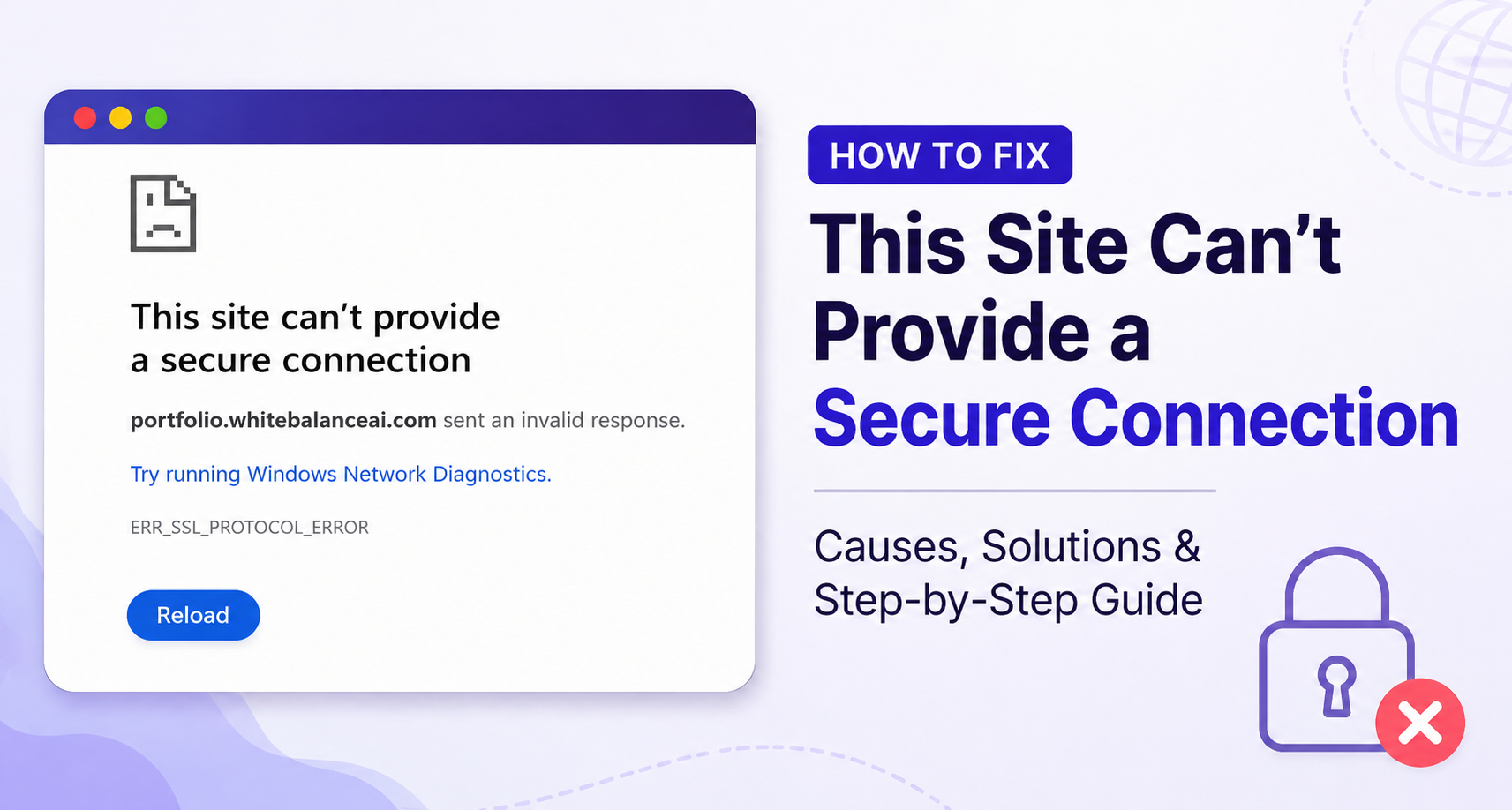
The fix was the exact sequence above. I added a Domain property for my main domain, verified it with a DNS TXT record in my hosting (which changed nothing about my live site), then opened the Removals tool, entered the dead subdomain, chose “remove all URLs with this prefix,” and submitted. Because the subdomain was genuinely dead — it returned an SSL/connection error to Google’s crawler — the temporary removal was on track to become permanent on its own. Within hours, the stale listing was gone, and my main site was never at any risk.
The lesson I took from it, beyond the steps: putting each demo on its own subdomain made cleanup harder than it needed to be. Deleting a whole subdomain leaves exactly this kind of stale-listing mess. Putting demos in folders instead — yoursite.com/demos/bakery rather than bakery.yoursite.com — keeps everything under one property and makes future cleanup far simpler. If you are building demos or temporary pages now, that one structural choice will save you this headache later.
When to just wait instead
One honest point: not every stale listing is worth a removal request. If a deleted page is genuinely gone and nothing sensitive is showing, Google will drop it on its own within a few weeks as it re-crawls. Nobody can buy or hijack a subdomain of a domain you still own, so a leftover subdomain listing is a cosmetic issue, not a security one. If it does not bother you and nothing confidential is exposed, waiting is a perfectly valid choice. Use the Removals tool when you want it gone now, or when the listing shows something you would rather not have public.
Stuck with a page that won’t leave Google?
I solve problems exactly like this one — stale listings, deleted subdomains, indexing and removal cleanup, and the technical SEO that keeps your live site safe while you tidy up. If you would rather not touch DNS records and Search Console yourself, I can handle it for you, carefully and reversibly.
👉 Run a free site check
💬 Want me to do the work? Message me on WhatsApp
Frequently Asked Questions
Does removing a page from Google delete it from my website?
No. The Google Search Console Removals tool only hides a page from Google Search results. It does not delete files from your server, remove your website content, or affect your live pages. Your website remains exactly the same—only Google’s search index is updated.
Why is my deleted page still showing in Google?
Google keeps a cached copy of pages in its search index and only removes them after re-crawling your website and confirming the page no longer exists. This process can take several days or even weeks. Using the Removals tool helps speed up the process while Google updates its index.
Can the Removals tool damage my main website?
No. The tool only affects the exact URL or URL prefix that you choose to remove. Your main website, other pages, and different subdomains remain untouched unless you specifically submit those addresses. If needed, removals can also be reversed later.
Why does it say “remove entire site” when I only want a subdomain gone?
Google treats each subdomain as a separate property. When the Removals tool says “remove entire site,” it refers only to the subdomain currently selected—not your main domain. Always double-check the URL shown before confirming the removal.
Do I need to remove a page from Google before deleting it?
No. You can safely delete the page first and request removal afterward. If the deleted page returns a 404 or 410 status code, Google will recognize that it no longer exists during its next crawl, helping make the removal permanent.
⭐ Found this helpful? Add WhiteBalanceAI as your Google Preferred Source so these WordPress guides show up more often for you. Set WhiteBalanceAI as a preferred source →
🌿 Want to see AEO in action?
Caloriematterss is a real-world niche food blog built with AEO (Answer Engine Optimization) and GEO (Generative Engine Optimization) principles from the ground up. Explore how structured recipes, FAQ schema, internal linking, and AI-friendly content work together in a live website.
Visit Caloriematterss →🚀 Need Reliable Web Hosting?
Most website setup tasks—such as managing DNS records, adding TXT verification, configuring SSL, and connecting your domain—happen inside your hosting control panel. I build and host client websites on Hostinger because its dashboard is beginner-friendly, fast, and makes domain management simple.
Start with Hostinger →Disclosure: This is an affiliate link. If you sign up through it, I may earn a small commission at no extra cost to you. I only recommend tools I personally use and trust.